- Free core features
- No watermarks
- Works on your Mac
Capture, record, translate.
All from your menu bar.
Magic Capture lives in your Mac menu bar. One shortcut to grab and mark up a screenshot, record your screen, or pin an image on top. See a foreign word? Select it and the translation pops up right there.
Magic Capture is Mac-only for now; a Windows version is in the works. Send this page to your Mac to download it there.
Nine shortcuts
One shortcut, one job
No windows to open, no buttons to find. Press and go. Every shortcut can be changed in Preferences.
Screenshots & markup
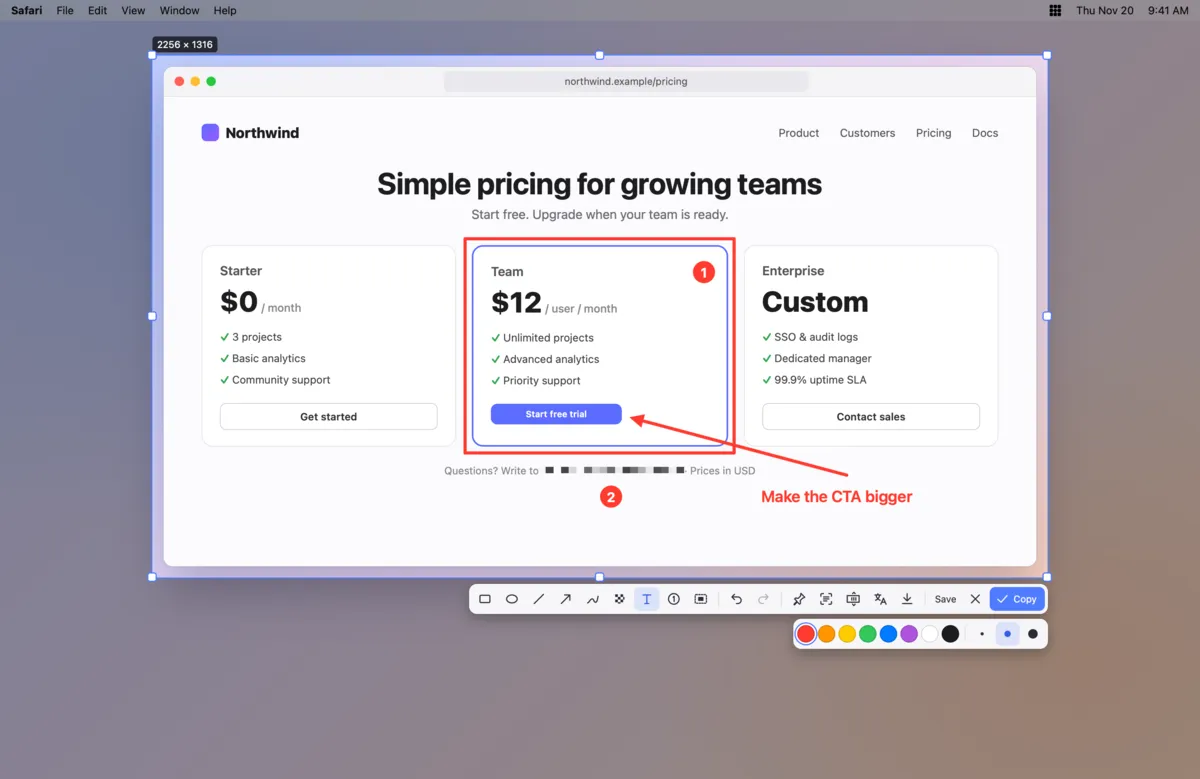
Capture, mark up, done
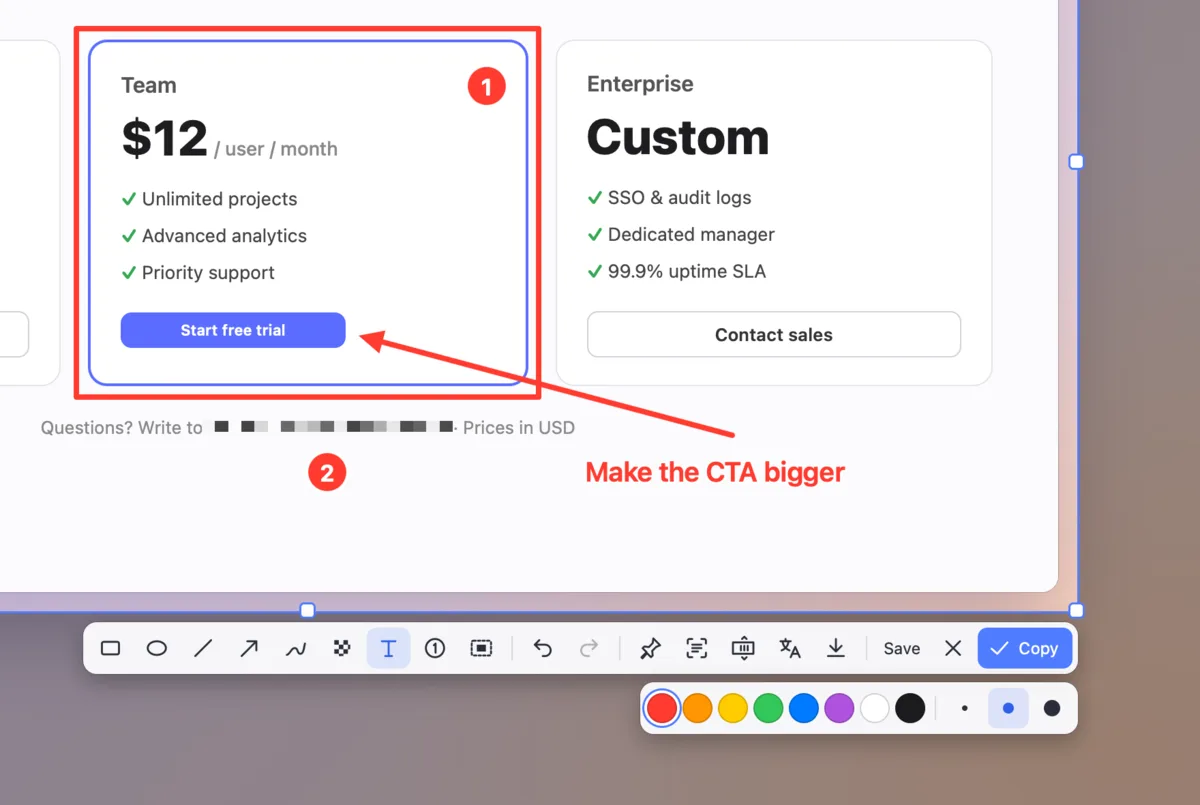
Press ⌥A. Hover a window to select it, or drag to draw your own area. The markup toolbar appears as soon as you let go: boxes, arrows, text, numbered steps and blur, all movable after you draw them. Return copies, Space saves.
- Area, window, full screen, preset size, timer, multiple windows, or the last area again
- Magnifier for pixel-perfect edges; press C to copy the color under the pointer
- Scrolling capture: press S and it scrolls and stitches for you (VIP)
Screen & audio recording
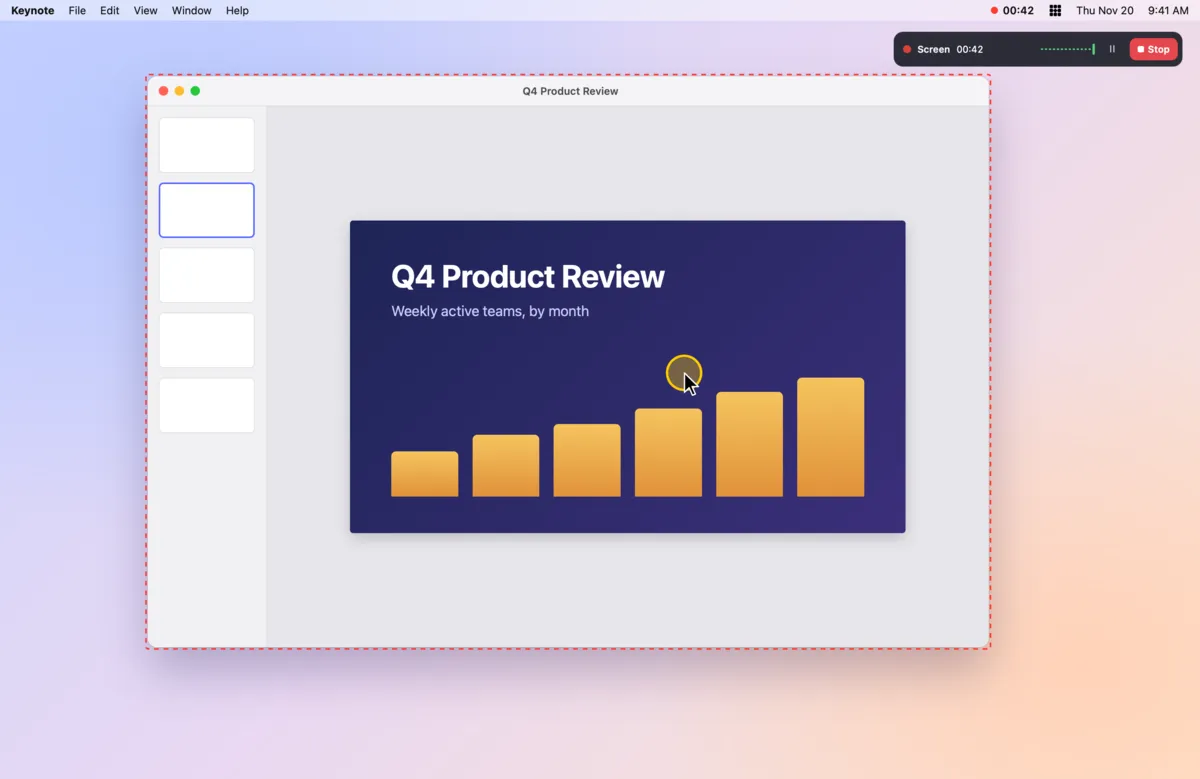
Record with sound, for as long as you need
Press ⌥W, pick an area, a window or a whole screen, tick system audio and microphone, and go. Pause anytime, show your clicks, and split long recordings automatically. A crash will not cost you the recording.
- Saved as MP4 (H.264 or smaller HEVC); turn it into a GIF in one click
- Audio only? Press ⌥E for an M4A
- Split every 1 to 60 minutes; written to disk every 10 seconds
Translate a selection
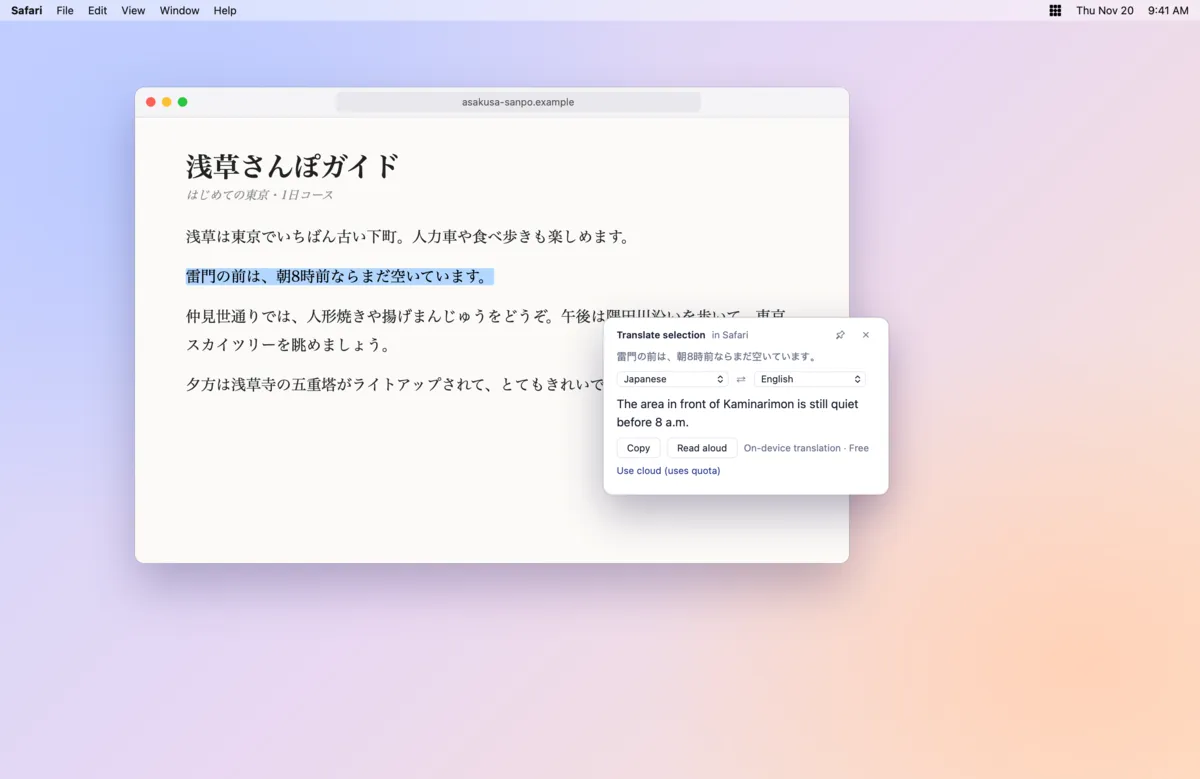
Translate right where you read
Select text in a PDF, a chat, an email or a game and press ⌥D. The translation appears right beside it, and your keyboard focus stays where it was. Select a single word and you get pronunciation, meanings and examples.
- On-device translation is free and offline (built into macOS 26 and later)
- Choose cloud translation when you want higher quality (uses AI credits)
- Save English and Japanese words to your word list, with where you saw them
Screenshot translation & OCR
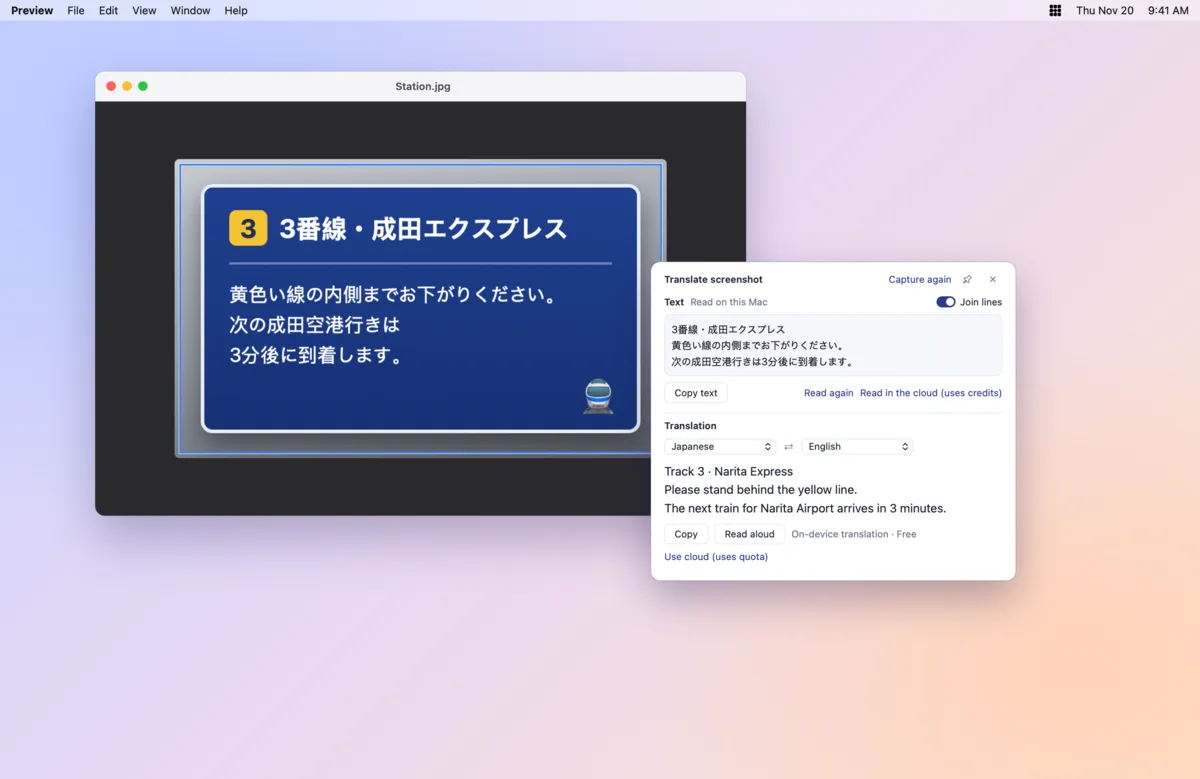
Copy and translate text in images and videos
Can't select the text? Press ⌥T and drag over it: Magic Capture reads it on your Mac and translates it. Just need the text? ⌥O copies it straight to your clipboard. Works with Chinese, English and Japanese, even mixed.
- Line-broken text from PDFs is joined into paragraphs before translating
- Switch to cloud recognition when the result is off
- Edit the recognized text, or click a word to look it up
Pins & clipboard history
Keep it in view, never lose a copy
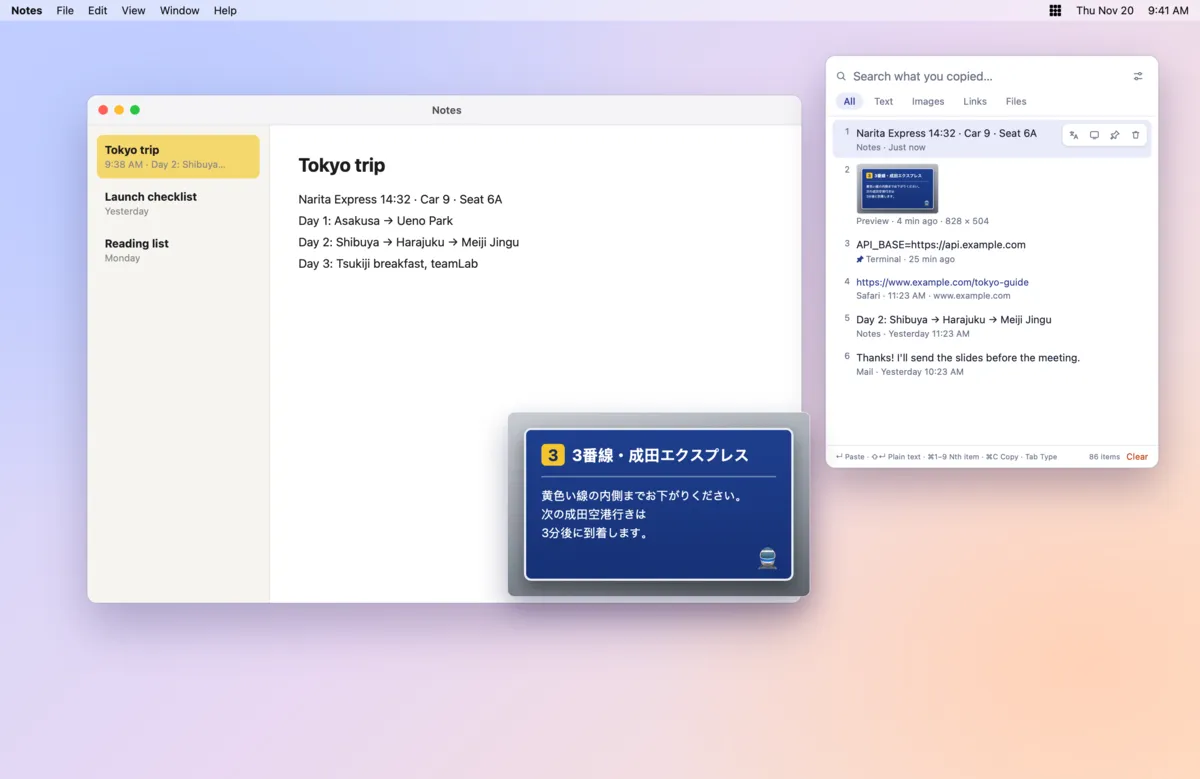
Pin a screenshot above every window while you code, fill in a form or match a design. Press ⌥V for clipboard history: text, images, links and files you copied, ready to paste back with Return.
- Zoom, fade or click through pins; ⌥H hides them all
- Clipboard history is off by default, stays on your Mac and skips password managers
- Type to search; ⌘1–⌘9 pastes an item directly
Framed screenshots
Turn a window into a polished image
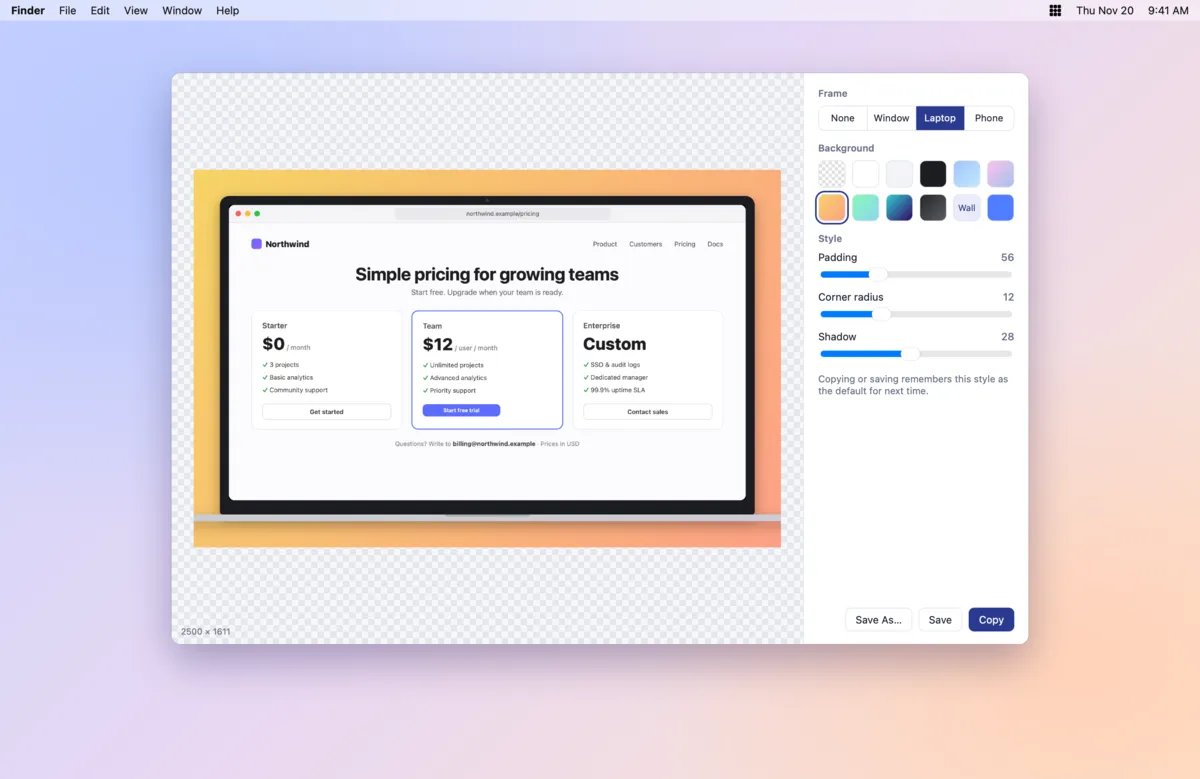
Press ⌥R and click a window. Add a laptop, phone or window frame, a gradient, solid or wallpaper background, and tune padding, corners and shadow. Great for docs, posts and slides.
- Clean, brand-free frames
- Exported at full resolution, transparent backgrounds supported
- Your last style is remembered
And more
All the little tools, too
Scrolling captureVIP
Press S while marking up; it scrolls and stitches, even chat histories.
Timer
⌥Y counts down 3–10 s so you can capture open menus and tooltips.
Multiple windows
Hold ⌘ and click several windows to combine them.
Preset size
⌥G gives a fixed-size frame for consistent images.
Color picker
⌥C, click, and HEX / RGB / HSL is on your clipboard.
Video player
Speed, frame stepping, A-B loop, clickable subtitle words.
Video converter
MP4, compress, trim, GIF or audio only.
Tidy menu bar
Tuck unused icons behind a divider arrow.
Quick lookup
⌥L to type any English or Japanese word.
Privacy
Your screen stays on your Mac
Screenshots, recordings, pins and clipboard history are stored only on this Mac: never uploaded, never synced. Text or an image leaves your Mac only when you choose cloud translation or recognition, and images are not kept on our server.
On-device OCR & translation
Powered by macOS's own Vision and Translation frameworks; works offline.
Clipboard history is off by default
When on, it skips password managers and items marked sensitive. Clearing really deletes.
Recording is always visible
A red dot and timer stay in the menu bar while recording.
Pricing
Free to start. VIP when you need more.
Screenshots, markup, recording, pins and on-device translation work without an account, without limits and without watermarks. VIP is a Magic Grid membership that also unlocks perks on the web and mobile apps.
Free
$0forever
- Every capture mode and markup tool
- Recordings up to 10 minutes each
- Pins, framed shots, color picker, video player & converter
- Unlimited on-device OCR and translation
- Clipboard history up to 500 items
- With a free account: 300 cloud translations and 20 cloud image reads per day, word list
VIPVIP
Monthly or yearlyMagic Grid membership, from your account
- Scrolling capture
- Unlimited recording length
- Clipboard history up to 5,000 items
- 3,000 cloud translations and 200 image reads per day
- 2 million AI credits every month, lower service fee
- All VIP perks on the web and mobile apps
Is it free?
Screenshots, markup, screen and audio recording, pins, clipboard history and on-device translation are free, with no watermarks and no account required. Scrolling capture, unlimited recording length and more cloud translations come with VIP.
Which Macs are supported?
macOS 14 or later, on both Apple silicon and Intel (one universal download). On-device translation uses the system Translation framework, which needs macOS 26 or later; on older versions, use cloud translation.
Why does it need Screen Recording and Accessibility?
Screenshots, recording, screenshot translation and the color picker read the screen, which needs Screen Recording. Translating a selection reads selected text in other apps, and pasting from clipboard history and scrolling capture simulate keys and scrolling, which need Accessibility. Each permission is requested only when you first use a feature that needs it.
Are my screenshots uploaded?
No. Screenshots, recordings and clipboard history stay on your Mac. Text or an image is sent only when you choose cloud translation or recognition, and images are not kept on our server.
How is it different from ⇧⌘4?
You also get automatic window detection, a magnifier and color picker, editable markup, scrolling capture, pins, framed screenshots, screenshot translation and OCR, and screen recording with system audio.
Option + letter doesn't type special characters anymore?
Magic Capture uses Option + letter shortcuts, so those keys no longer type characters such as å or ß in text fields. Clear or change any shortcut you do not need in Preferences.
How do I update or uninstall?
The app checks for updates on its own. When the menu bar icon shows a red dot, click it to update. To uninstall, choose Quit from the menu, then drag Magic Capture from Applications to the Trash.
Is there a Windows version?
It's in the works. We will announce it here and in the changelog.

Try it now. Set up in 30 seconds.
Download, drag to Applications, open. Look for the grid icon in your menu bar.
Magic Capture is Mac-only for now; a Windows version is in the works. Send this page to your Mac to download it there.